
Get started
Install Stenograf on Mac or Windows and make your first recording. The Mac download includes free transcription. Initial setup takes a few minutes, most of them spent downloading speech models once.
1. Install
Download Stenograf from console.soniqo.audio/download. On a Mac, open the disk image and drag Stenograf to Applications. On Windows, run the installer.
You need a Mac with Apple silicon on macOS 15 or later, or a Windows 11 PC. Summaries, chats and translation need 16 GB of memory, and on Windows an NVIDIA graphics card; without one, Windows uses Lightweight transcription, which names speakers later and can be less accurate. The system requirements say what each computer runs.
2. Sign in
Open Settings → Account and choose Sign in. In the Mac download, recording, transcripts, search, copy/paste and calendar reminders are free. You do not need to start a trial or buy a subscription to record on Mac. The current Windows download keeps its existing trial and subscription offer.
A subscription adds summaries, chats, follow-ups, connected tools and Recording settings for $12 a month. Start a trial or manage your subscription in Account. Available features update automatically after your plan is verified.
3. Allow audio on a Mac
Stenograf records two things: what your computer plays, and your microphone. macOS asks for both the first time you record — Microphone, and System Audio Recording for the sound of your calls. If a call records only silence, open System Settings → Privacy & Security → Screen & System Audio Recording and turn Stenograf on.
4. Record
The speech models download once during setup; Record meeting becomes available when they are ready. On a Mac, if Hugging Face is slow or blocked where you are, choose China mirror (hf-mirror.com) under Settings → Account → Model downloads first. Press Record meeting and start your call, or just start talking. Captions appear as people speak and are replaced by the final text a few seconds later. Your own microphone is always labelled Me.
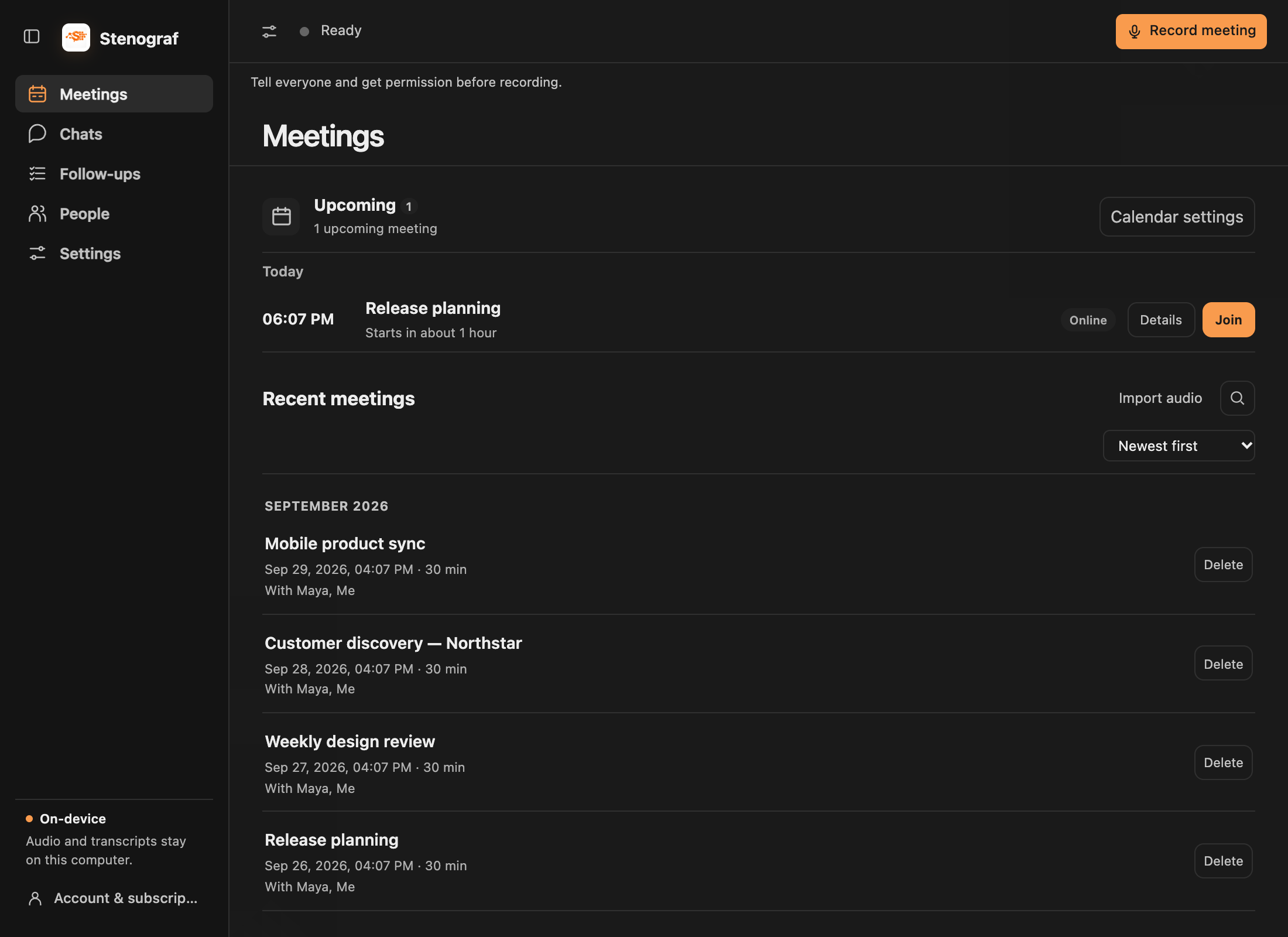
Press Stop when you are done. The recording is saved in Meetings, where you can read, search and copy the transcript. With a subscription and a local language model set up, you can also review its summary and continue in chat (see Chats).
5. Optional next steps
- Connect a calendar in Settings → Calendars — Google Calendar, Outlook Calendar or, on a Mac, the Calendar app — for meeting reminders with one-click Join & Listen. Listen never waits for it, so a calendar kept elsewhere costs you nothing. See Calendars.
- Open at login is on by default, so Stenograf is already running when a meeting starts.